
How To Make A Successful Trading Strategy Using Pine Script on TradingView
TradingView is a popular tool with many traders due to its vast array of tools and features. TradingView uses its native code language, Pine Script, to implement indicators and backtest trading strategies.
In this article, we’ll go through some basics of using Pine Script in backtesting by going through a step-by-step process. Follow this process, and you will be able to successfully backtest using Pine Script.
As an example, we will be showing these steps using a Donchian Channels / EMA strategy we developed in our article on Robotics and AI Trading Strategies (BOTZ ETF Backtest). This strategy uses the Donchian Channels and Exponential Moving Average indicators.
BOTZ Donchian Channel / EMA Strategy Trading Rules
Here are the trading rules of the strategy we will be implementing in Pine Script:
- On the daily timeframe, when the price crosses above the upper band of the Donchian Channels, and the price is above the EMA line, we go long (buy) immediately.
- On the daily timeframe, when the price crosses below the lower band of the Donchian Channels, we close our position (sell) immediately.
This means that we are using the daily timeframe, but trades are entered or exited immediately when the price crosses the Donchian Channels band during the day. We do not wait for the daily close. We achieve this by placing stop orders one tick outside the DC band.
We are using the following variables in this tutorial:
Trading Rules
[am4show have=’p2;p3;p58;p59;p130;p138;’ user_error=’Premium Post Access’ guest_error=’Premium Posts’]
- Our chart is the Global X Robotics & Artificial Intelligence ETF (BOTZ), on Nasdaq
- Daily timeframe
- ChannelBreakOutStrategy (Donchian Channels), length 3 (added in TradingView)
- EMA200 filter, where trades are only taken if the price is above EMA (added in Pine Script)
- Long positions only (added in Pine Script)
[/am4show]
We’ll call this combination of variables the ‘DC/EMA Strategy’.
You can easily achieve variables 1 and 2 by searching the BOTZ ETF in TradingView and setting the timeframe to daily. In this tutorial, we will focus on the last three variables, starting with number 3: how to add a strategy to our chart.
Donchian Channel / EMA Strategy in TradingView
We begin by applying one of TradingView’s pre-made strategies.
The Donchian Channels strategy is available under the name ‘ChannelBreakOutStrategy’:


We adjust the ‘Length’ input to 3 in the input interface:
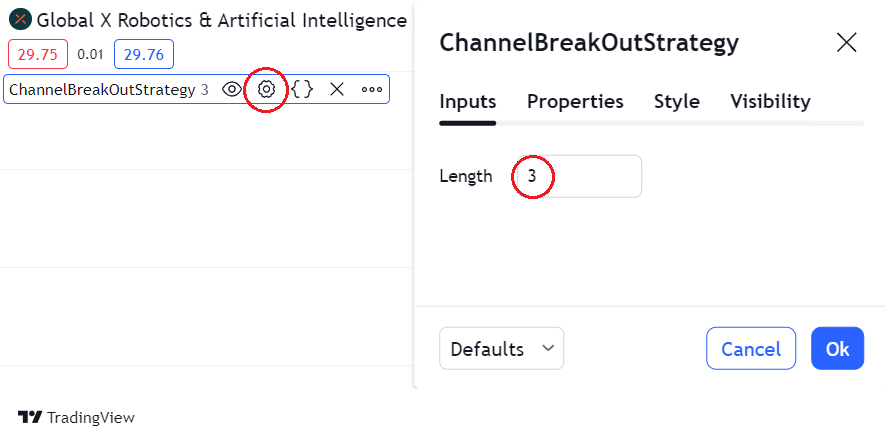
Further, we set ‘Order size’ to 100% of equity, to give us fully compounded end results:

This takes care of our basic Donchian Channels strategy, without any need to interact with Pine Script directly. Let’s move on to variables 4 and 5.
Donchian Channels/EMA Trading Rules in Pine Script
The premade ChannelBreakOutStrategy on TradingView lacks some of the features needed to make this strategy work according to the above trading logic. We’ll need to add these in Pine Script. Fortunately, this is a relatively easy operation and a great opportunity for learning some basics of Pine Script editing.
We will need to add three things in Pine Script to make this work. These are:
- Chart visualization (plotting) for the Donchian Channels.
- EMA200 filter
- ‘Long only’ filter
Modifying source code in Pine Script
In order to modify the ChannelBreakoutStrategy, we start by clicking the ‘Source code’ button next to the strategy in the chart:

We then make a copy of the current script by pressing the ChannelBreakOutStrategy itself and giving the new script a fitting name:
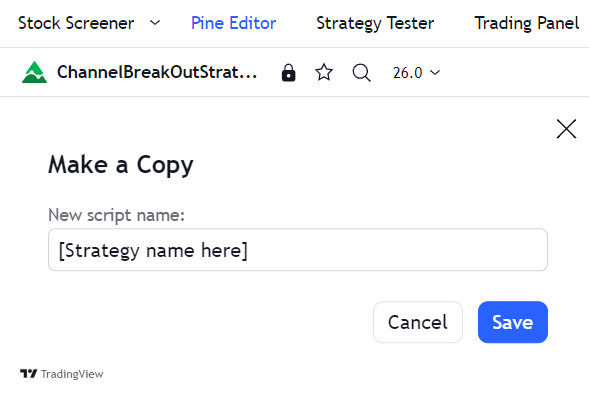
With this out of the way, we are ready to start editing the code.
Plotting the Donchian Channels
Copy/paste the following Pine Script code snippet at the bottom of the coding window, and click ‘Save’.
plot(upBound, color=color.green, linewidth=1, title="Upper Band")
plot(downBound, color=color.red, linewidth=1, title="Lower Band")
This makes sure our Donchian Channels are plotted onto the chart.
Filtering trades with an Exponential Moving Average
Copy/paste the following Pine Script code snippet right below the ‘downBound = ta.lowest(low, length)’ line:
emaLength = input.int(title="EMA Length", minval=1, maxval=1000, defval=200)
emaFilter = ta.ema(close, emaLength)
Then add the following snippet at the bottom of the script: